Your device was manufactured by KOUKAAM a.s. company, which went to bankruptcy in May 2016. We bought part of business related to NETIO portfolio and restart manufacturing and development. Due to changes it is not possible to upgrade units from KOUKAAM a.s. to latest firmware regular way and that's the reason why you can't upgrade to firmware versions 2.3.5 and newer available for your device.
These instructions have to be followed for every device separately to finish the upgrade.
If your device has serial number (MAC) starting with 24A42C33xxxx it is old and need to be updated by this transition firmware. After this fix standard updates from www.netio-products.com can be used.
The manufacturer shall not be held responsible for any damage or expenses resulting from the utilization of following recommendations. Manufacturer is acting in good will to help repair old devices and prolong their lifetime.
This manual is valid for devices manifactured by Koukaam a.s. before the year 2016. Following models are supported:
1. Run Service mode
Run NETIO device in Service Mode (Hold button no. 4 during power up until the device beeps twice - approx. 20 seconds)
When the device gets into service mode the LED number 4 will shine RED
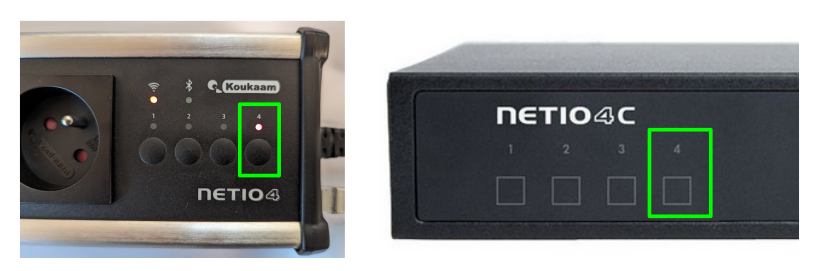
2. Open Service mode and select firmware
NETIO device will have the same IP address as before going to service mode or use NETIO Discover utility to find the device.
Open the menu Firmware
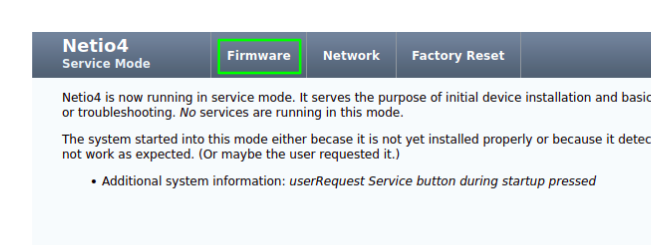
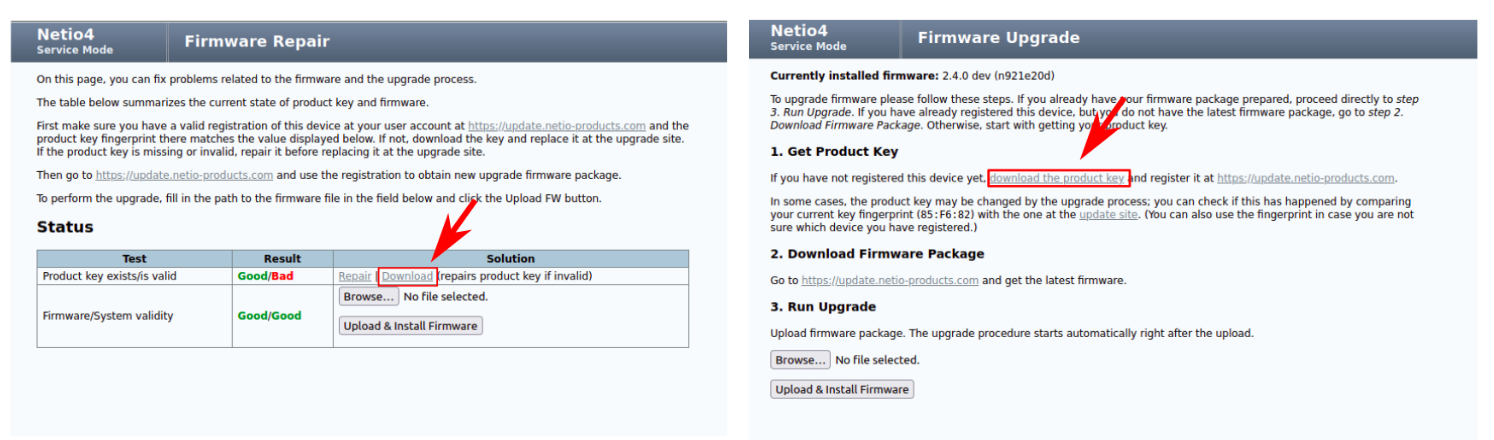
3. Download device KEY
Download device key file "product.key"
In case product key or firmware is broken or not valid, just click on Download. The key will be repaired automatically.
Keep your device running
4. Download transition firmware for your device
Put "product.key" into the form below, click on "Upload Key & GET firmware" and wait for downloading transition firmware file
5. Update your device with transition firmware file
Browse downloaded firmware file and click "Upload & Install Firmware" to update your device with transition firmware.
Warning! Power failure during this procedure can damage the device.
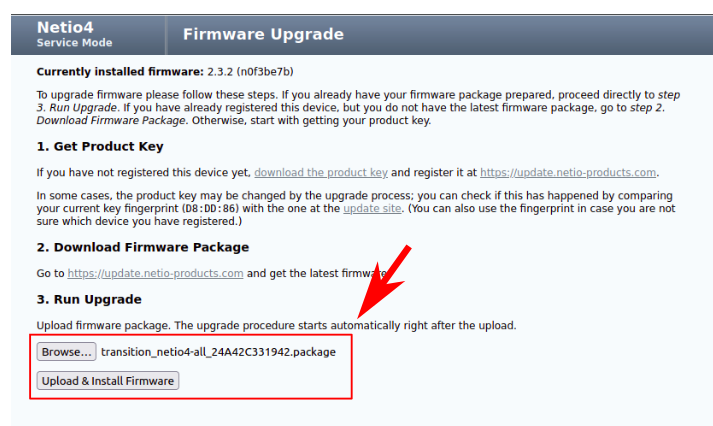
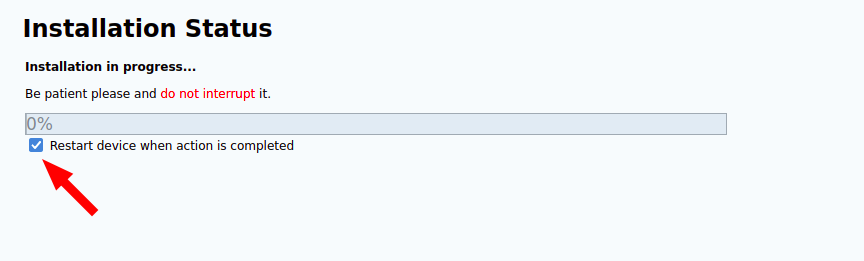
You will see upgrade progess bar. Once the firmware is successful the device should be restarted automatically.
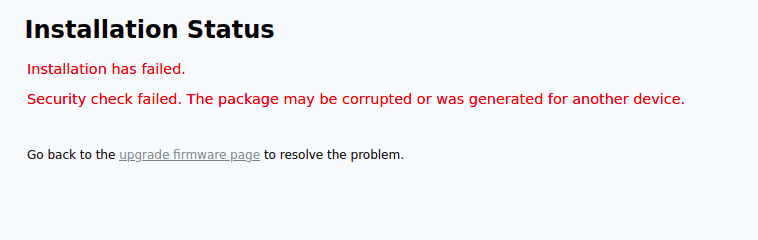
Troubleshooting: If the upload fails like in the picture below, please REASTART THE DEVICE by physical button and repeat the procedure from beginning.
6. Update your device with latest firmware file
After the restart the system should be updated to production version from NETIO products a.s. company.
You can use any firmware version for your device from https://www.netio-products.com/en/firmware-archive-netio